Do you wish there were more of you in a video? It will be wonderful to clone yourself in a video to add more fun and vividness to your movie. There are many software can help do to achieve this video effect and here we will teach you how to make a clone of yourself using Apple iMovie.
We will use the iMovie green screen function to overlay one video on top of the other.
How to duplicate yourself in iMovie 09/11
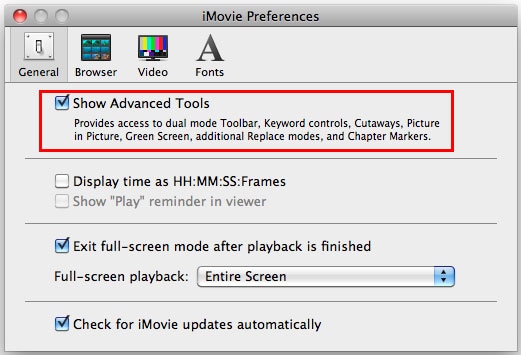
First, make sure you have videos on photos that have the opposite direction and turn Advanced tools on. Go to iMovie Preferences, and click “General”, and then you will see a popup window as below. Select “Show Advanced Tools” to turn it on.
Then create a new iMovie project and drag the first general video clip to the project. Then drag the second clip over the first clip. A pop up window will come out, from where you should choose Green Screen.

Then when you preview the video, you may find that it only displays part of the videos. There is no clone of you at all. Well, you need to do some cropping so that the two videos can be both seen. In the viewing window, you can drag the four corners to change the frames of the clip for the clone. When it is “OK”, click the Done button to finish the adjusting.
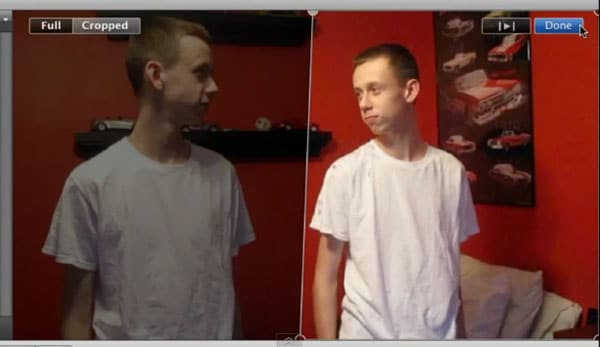
When you have finished cloning yourself, you may find that there is an obvious line between the two video parts. To make it more vivid, you can adjust the video saturation, brightness, etc. to minimize the line to achieve a better result. For iMovie video editing tips, please go to use iMovie to edit videos.

See, you and yourself are in the video! You can now make a clone of yourself in the videos easily.
[source: wondershare.com]

No comments:
Post a Comment